Pebble watch app
 Pebble watch app
Open Activity
From the activity you see to the app behind it.
See a countdown on Dynamic or Halftone, then use a configured Quick Launch button shortcut to open Timer. Open Activity follows the activity displayed by your chosen watchface.
- Works with
- Pebble Time 2 and Round 2
- Version
- 1.0.2
- Needs either Dynamic or Halftone as its source watchface.
- Needs the Pebble phone app’s plugin support, a connected phone and Launch Apps permission.
- Choose matching shortcuts in Open Activity and the phone’s Quick Launch settings.
Latest release
What changed in v1.0.2
Full release notes- Fixed a case where settings could stay stuck on “Saving”.
- More reliable delivery feedback when editing, saving or reloading settings.
- Clearer setup help and appearance choices.
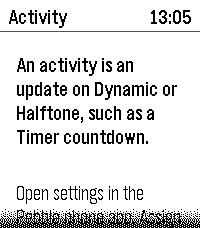
Native emulator · example data
On your watch
Choose what your shortcut follows.
Pick Dynamic or Halftone, then its large Primary activity or smaller Secondary row. Match the shortcut in Pebble’s Quick Launch settings. Opening Open Activity from the app list brings you to setup.
- Choose Dynamic or Halftone as the source watchface
- Assign different shortcuts to primary and secondary activities
- Open from the app list for setup; use Quick Launch to open an activity
Connect the pieces you choose
Back to the app, with a button.
With a countdown visible on Dynamic or Halftone, your configured Quick Launch shortcut can open Timer. It follows the Primary or Secondary activity you chose.
The shortcut opens the whole app, not a particular saved timer. A missing or expired activity leaves it without an app to open.
A closer look
Open Activity in use.
Actual app screens captured in the emulator with example data. Open an image to see its full size.
On Time 2
Capture details
Captured v1.0.0 · native emulatorReused for v1.0.2 after native compatibility checks.Capture provenanceOn Round 2
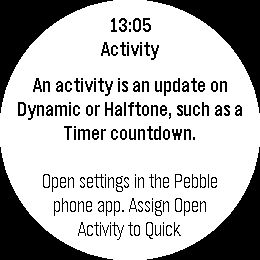
Capture details
Captured v1.0.0 · native emulatorReused for v1.0.2 after native compatibility checks.Capture provenancePhone settings
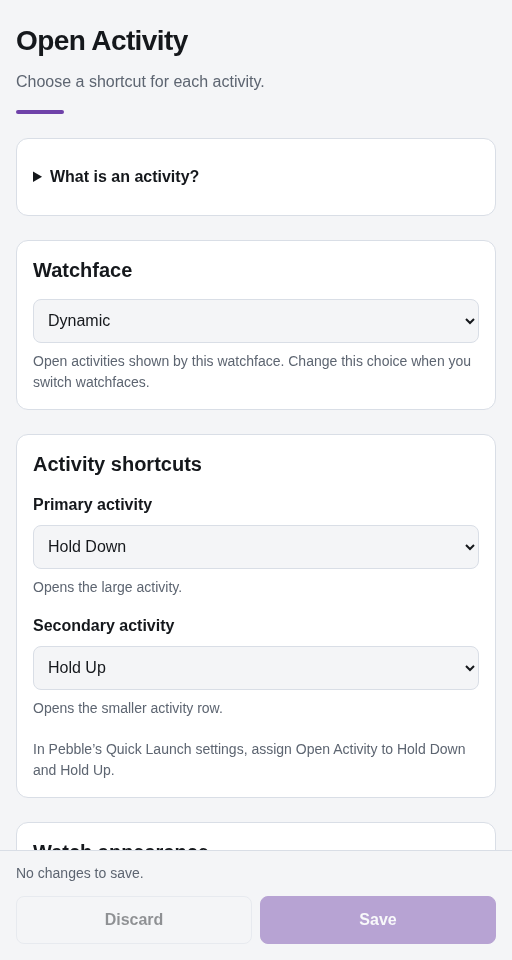
Already installed?
Make Open Activity yours.
Find the setup steps and controls, or get help with something that isn’t working.