A countdown on your watchface, in pictures
Install Timer and one watchface, then follow its settings below. If Timer is new to you, try a one-minute countdown on its own first.
Dynamic · v1.0.2
Open Activities
Use the gear on Dynamic’s page in Pebble, then choose Activities. These are the watchface’s settings, separate from Pebble’s own permissions screen.
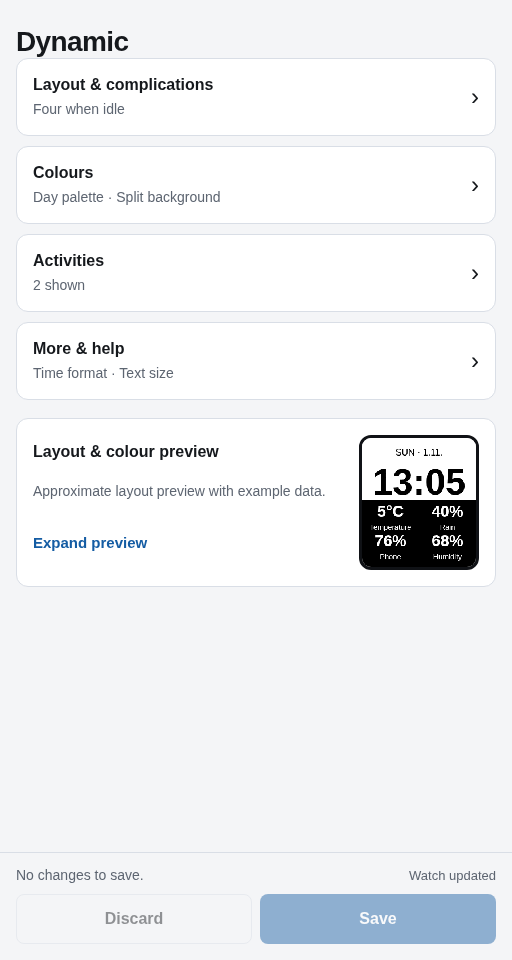
Settings v1.0.2 · excerpt. Open the image for full context. Show Timer in Activity priority
Turn on Show activity plugins, then turn on Show for Timer. To give it the larger activity area, choose Reorder, move Timer above competing sources and choose Done.
Each watchface keeps its own order. You only need to configure the one you are using.
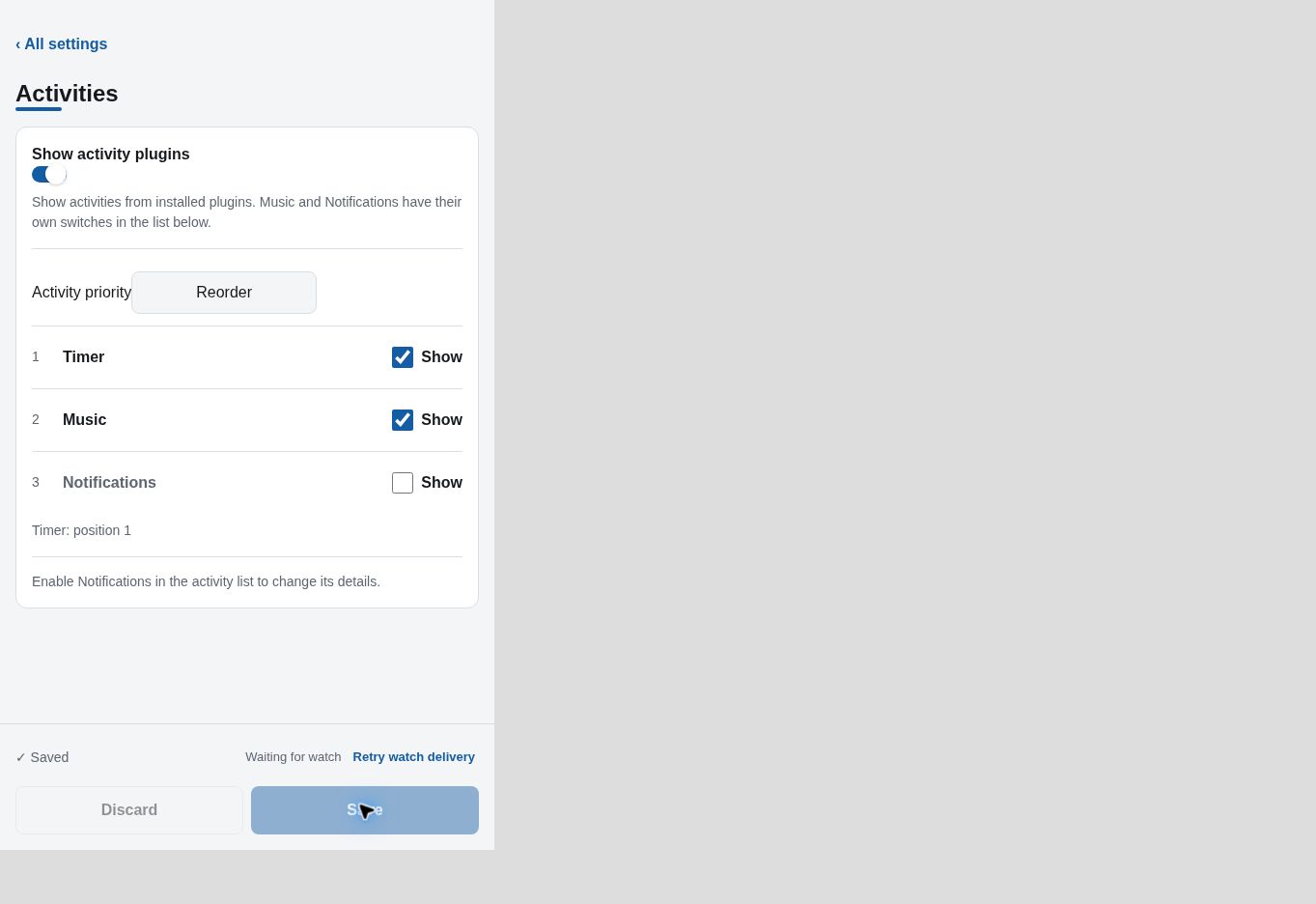
Dynamic settings v1.0.2 · excerpt with an example Timer source. Save, then check watch delivery
Choose Save and wait for ✓ Saved. This confirms phone storage. A separate watch status can still be pending; keep the app connected and use Retry watch delivery if offered.
Phone saving and watch delivery are separate stages. Help with Save and delivery.
Dynamic settings v1.0.2 · Save and delivery excerpts from one settings view. Start twelve minutes, then go Back twice
On the watch, open Timer, choose New, set minutes to 12, then press Select through seconds to start. Press Back to the Timer list and Back again to your watchface.
Check: its activity area shows time remaining. Timer still owns the countdown and alarm; open Timer to pause or resume. If the countdown is missing.
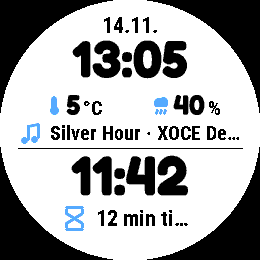
Round 2 emulator · captured v1.0.1, reused for v1.0.2. Separate example data, not a recording of the phone steps.
Halftone · v1.10.3
Open Content & priority
Use the gear on Halftone’s page in Pebble, then choose Content & priority. These are the watchface’s settings, separate from Pebble’s own permissions screen.
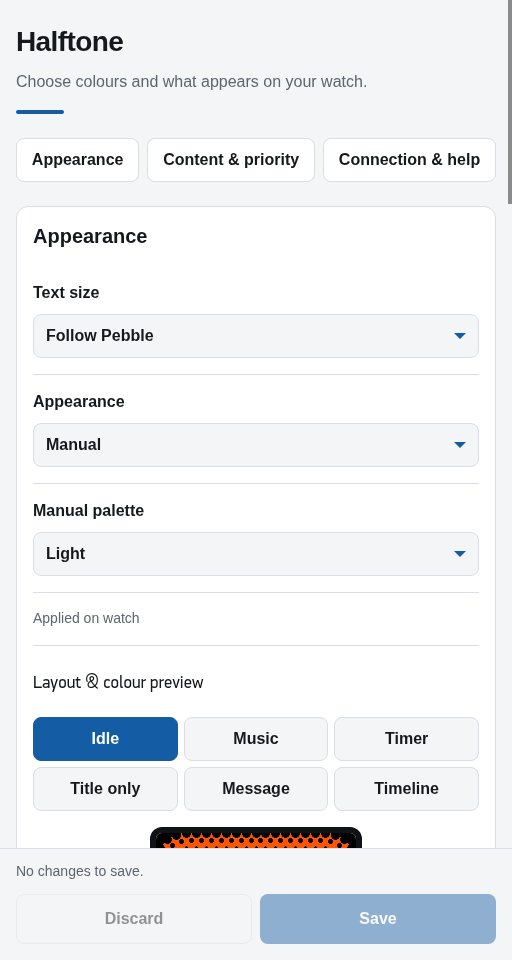
Settings v1.10.3 · excerpt. Open the image for full context. Show Timer in Activity priority
Turn on Show activity plugins, then turn on Show for Timer. Use Move up beside Timer to put it above competing sources when you want its countdown in the larger area.
Each watchface keeps its own order. You only need to configure the one you are using.
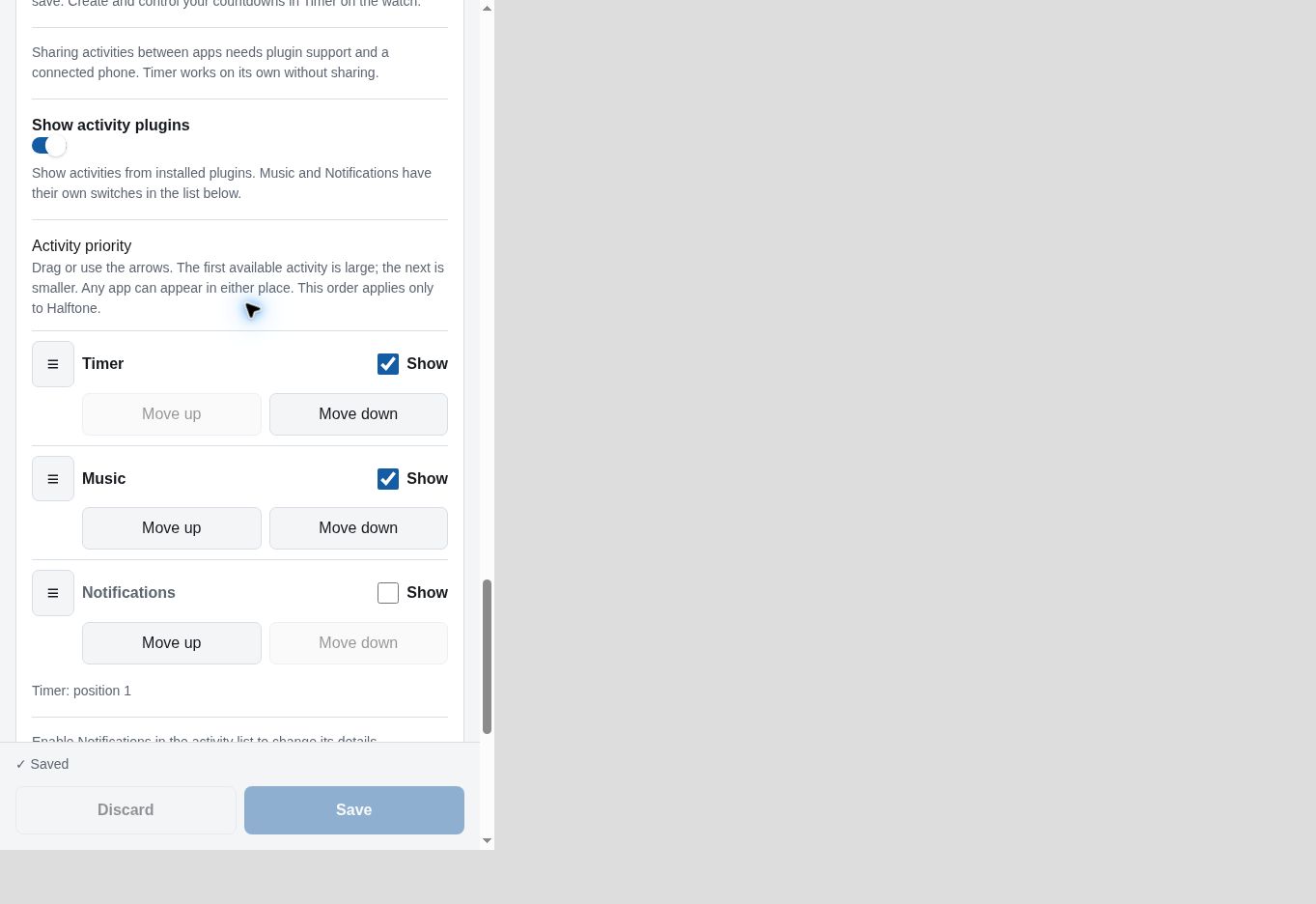
Halftone settings v1.10.3 · excerpt with an example Timer source. Save, then check watch delivery
Choose Save and wait for ✓ Saved. This confirms phone storage. A separate watch status can still be pending; keep the app connected and use Retry watch delivery if offered.
Phone saving and watch delivery are separate stages. Help with Save and delivery.
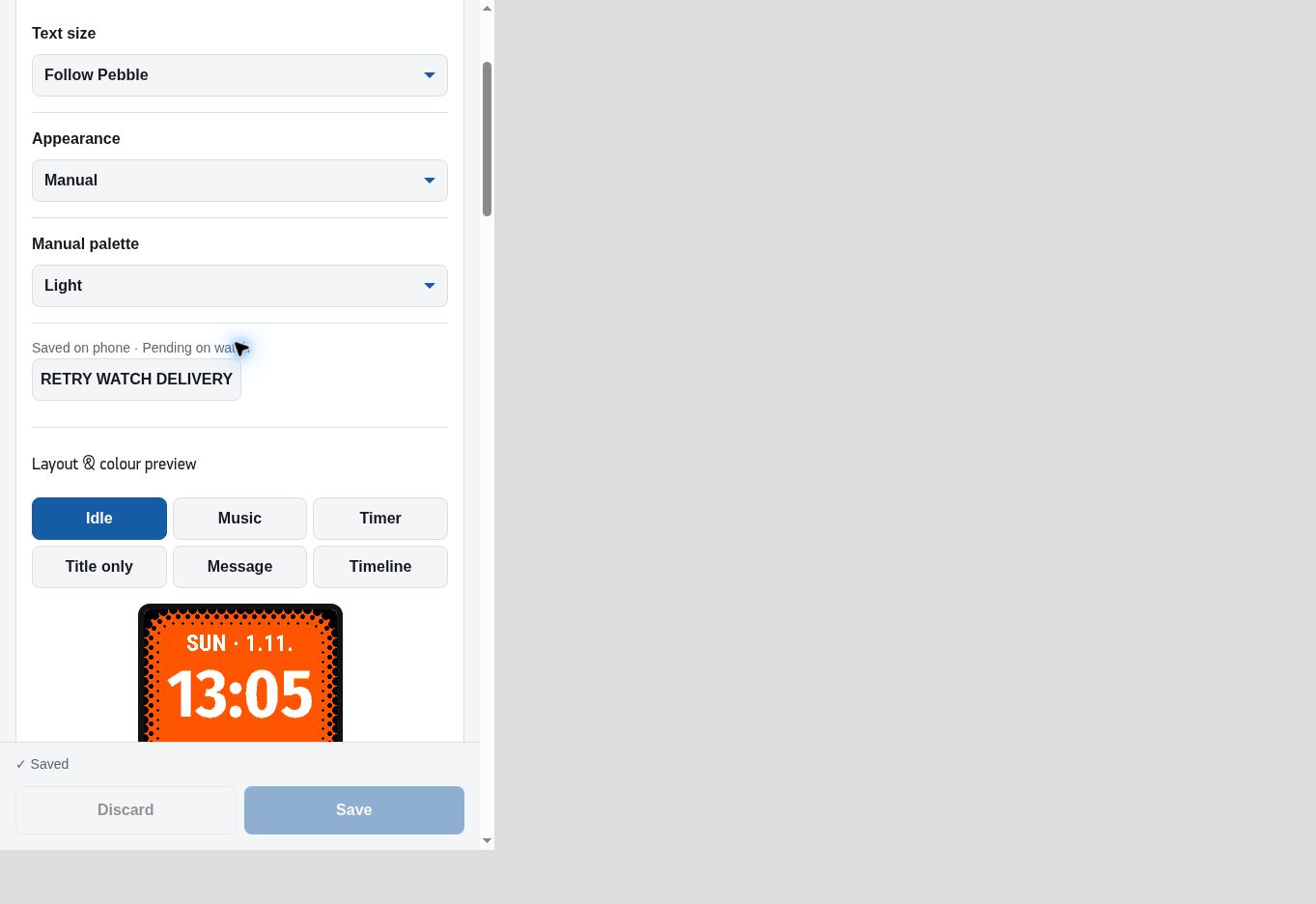
Halftone settings v1.10.3 · Save and delivery excerpts from one settings view. Start twelve minutes, then go Back twice
On the watch, open Timer, choose New, set minutes to 12, then press Select through seconds to start. Press Back to the Timer list and Back again to your watchface.
Check: its activity area shows time remaining. Timer still owns the countdown and alarm; open Timer to pause or resume. If the countdown is missing.
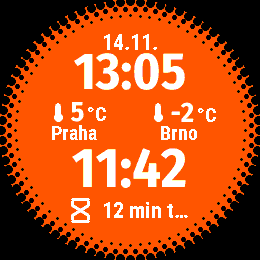
Round 2 emulator · captured v1.10.2, reused for v1.10.3. Separate example data, not a recording of the phone steps.
Phone images show the released settings pages in a browser with example providers and simulated phone/watch replies. They illustrate the controls, not a live-phone or physical-watch test. Image sources and versions.
New to XOCE? Choose your apps first. Start with Timer, then add Dynamic or Halftone if you want a countdown on your everyday clock. Dashboard, Open Activity and ČHMÚ Weather are optional.
Before installing
- Pair your watch: get the official Pebble phone app, open it and pair your Time 2 or Round 2. Follow Pebble’s phone-app guide if needed. These native builds do not include other watch models.
- Check availability and version: open the app’s product page. Its release status and the version list above describe the build covered by this guide. A release in preparation has no verified installation button yet.
- Use the Store link when available: choose View in Pebble Store, then install through the official phone app. Pebble’s buttons are Add to Watch for an app and Start Watchface for a watchface. Official installation help.
- Check the watch: an app appears in its app list; a watchface can be selected as the clock. ČHMÚ Weather appears in the phone app’s Plugins list instead.
Older GitHub releases can have different settings. Use a matching version rather than substituting an older release for a prepared one. Source and debugging ZIP files are for development; a .pbw is the Pebble installation file.
Optional manual installation
A verified Download .pbw link appears on the product page when offered for that release. Open that file with the official Pebble phone app and follow its prompt.
- Android: try the browser’s download list or the Files app. If Pebble is not offered directly, check Open with / Share.
- iPhone / iOS: save the file to Files, then open its share sheet and look for Pebble, possibly under More.
File-opening choices vary by phone and app version. If Pebble is absent, check the official app is installed and current, then try from Files. This is an alternative to Store installation, not an additional step.
Timer
First complete Before installing. Timer’s countdown and successfully scheduled alarms work on the watch; the sharing setup below is optional.
- Install Timer when the matching release is available. On the watch, press Select to open the app list and choose Timer.
- Choose New; minutes are selected first. Use Up/Down to set 1, press Select to move to seconds, leave them at zero, then press Select again to start. All Timer controls.
- On the countdown screen, press Select to pause; press it again to resume.
- When it finishes, choose Done. The saved duration remains available to start again. Up on the alarm screen snoozes for one minute.
Check: you can start, pause, resume and reuse the timer. If the watch reports Alarm not set; keep open, keep Timer open and follow the alarm help.
To return from a timer detail screen to the watchface, press Back to the timer list, then Back again. Timer’s phone settings select text size, Light/Dark watch appearance and Alarm sound. Sound is available on Time 2 and respects system mute and Quiet Time; Round 2 uses vibration. Timer creation and controls stay on the watch.
Enable shared information
Complete this part when adding shared readings, Activities or Open Activity.
- In the current official Pebble phone app, open Settings → Plugins → Plugins / permissions preview and enable it. The Plugins tab should appear in the Apps screen. Labels may vary with phone-app versions.
- Keep the watch and phone connected. Open the relevant app or watchface’s settings using its gear in Pebble.
- Allow the permissions needed by the sources or actions you choose. A prompt may appear when you first use an optional feature; return to the app after allowing it. Review permissions on that app’s page in Pebble.
Check: the phone offers the source or activity you want. Installing every XOCE app is unnecessary: choose Timer for a countdown, a weather source for weather, and app launching for Open Activity.
Built-in music and notification sources need Android. Other plugin features depend on the sources and permissions available on your phone. Phone compatibility.
A saved confirmation records phone settings. Keep the watch connected and check the actual watch display too. If delivery is pending, use the page’s watch-delivery retry where offered. Settings help.
Dynamic
After installation, choose Dynamic as your watchface and complete Enable shared information.
- Open Dynamic’s phone settings, then Activities.
- Turn on Show activity plugins. In Activity priority, show Timer; use Reorder to put it above other activities if you want it in the larger area.
- Choose Save and wait for ✓ Saved. If watch delivery is pending, keep the connection and use the indicated retry.
- Now open Timer on the watch and start a 12-minute countdown. Press Back to its list, then Back again to return to Dynamic.
Check: Dynamic shows the remaining time. Timer still owns the countdown and alarm. If it does not appear.
Choose a layout and colours
Layout & complications offers Columns, Stacked rows and Four when idle. The four-reading grid keeps the selected pair when an activity or Timeline Peek needs room. Optional shake switching cycles the selected pair without refreshing the sources.
Colours selects the appearance used on the watch and edits day/night palettes. Editing a palette does not switch the active one. Detail colours apply with Split clock and details enabled. The preview contains examples, not live readings.
All four category screens share a draft and one Save/Discard bar. More & help contains text size, clock format and diagnostics.
Add weather and other small readings
In Pebble, open Settings → Plugins → Complications. Choose readings such as temperature or phone battery for slots 1–2, or 1–4 for Four when idle. Shake switching can also use slot 5. These shared choices can affect other watchfaces, including Halftone.
Configure the chosen weather provider, location and permissions in Pebble. Dynamic displays the source you select; ČHMÚ Weather is an optional Czech source.
Add music or notifications
On Android, show the desired source in the watchface’s activity list and allow its permissions. Dynamic’s notification summaries and message text both start off. Choose deliberately what private content may appear. The large Primary activity gets the first eligible update in your order; a Secondary activity appears when space allows.
Open Activity
Optional. First show a Timer countdown on Dynamic or Halftone. You can also open Timer directly from the app list.
- Install Open Activity when available. Open it from the watch’s app list and leave its setup screen open.
- Open its phone settings. Choose Watchface → Dynamic or Halftone to match the face you use.
- Choose a supported shortcut for Primary activity; optionally choose a different one for Secondary activity. For a first test, use Hold Down for Primary if offered. Save and wait for confirmation.
- Allow Launch apps when Pebble prompts. If it was denied earlier, review Open Activity’s permissions in Pebble.
- Assign Open Activity to the same shortcut in Pebble’s Quick Launch settings. For a normal button hold, use Settings → Quick Launch on the watch, or the phone’s Watch Settings → Quick Launch. Official Quick Launch help.
- Return to the chosen watchface, with a fresh countdown visible. Hold the assigned button to try it.
Check: the shortcut opens Timer. A normal app-list launch opens Open Activity’s setup screen instead.
Use one connected watch. If you change between Dynamic and Halftone, update the source in Open Activity too. It uses that chosen face’s recent activity record; it does not detect the previously active face automatically. The destination must be installed. It opens the whole app, not a particular timer, song or notification. Shortcut troubleshooting.
Dashboard
Optional. Install Dashboard when available, then complete Enable shared information. It opens as a watch app, leaving your chosen watchface in place.
- Open Dashboard on the watch while the phone is connected, then open its phone settings.
- Choose which Activities appear and their order. Dashboard’s list is separate from both watchfaces.
- Add a Pinned item. Start with an available phone-battery or weather reading. Choose an action for Select or an installed app for Hold Select only if useful.
- Save, wait for confirmation, then return to Dashboard on the watch.
Check: the overview can show your current Timer activity, a notification panel and two pinned items. Empty or unavailable sources may leave those positions without content. Hold Up for the Activities collection or Down for Pinned.
For an app shortcut, choose Hold Select → Open app and select the destination by name. A Store search result does not install the app; confirm it is on your watch. Pins here are Dashboard readings and shortcuts, separate from timeline pins.
Dashboard displays Timer’s countdown but cannot pause or resume it. Open Timer for those controls. Dashboard controls.
Halftone
Set up Halftone for a dotted-border clock with the first two shared Complications readings. Its Content & priority settings can show Timer too. Configure and save them before starting the example countdown.
ČHMÚ Weather
Set up ČHMÚ Weather if you want Czech station observations and ALADIN forecasts. It runs inside the phone app. Its guide separates adding a saved location, checking plugin data and selecting the weather provider or a watchface reading.
What is an activity?
An activity is an update about something happening now, such as a countdown. Compatible watchfaces and apps display it while the source app retains its controls. Weather and battery readings use separate Complications or pinned-item settings. How Activities work.
Check the complete workflow
- Configure your chosen watchface and save its Activity settings.
- Start a 12-minute timer and return to that face. Check that its countdown appears.
- If you added Open Activity, use its Primary shortcut to open Timer.
- Pause or resume in Timer. A paused timer remains saved; its shared activity leaves the display after five minutes.
If a check fails, use Troubleshooting for that step before adding another optional connection.